User manual
Introduction
TextTemplateManager is a Windows application for storing reusable pieces of text — email replies, code snippets, standard responses, boilerplate — and inserting them into any other application with a keystroke. Templates are organized in folders, can be given keyboard- shortcuts, and can optionally be shared with a team through a synchronized file.
This manual describes every feature of the application. Throughout, a menu path is written in the form Menu ▸ Item (for example, Settings ▸ General), and keyboard input is shown in bold (for example, Alt). The installed version is shown under Help ▸ About.
Installing
Install TextTemplateManager from the Microsoft Store: search for TextTemplateManager in the Store app, or open its Store page. The Store also keeps it up to date (see Updates). The .NET runtime is part of the app and the Store adds the Windows App SDK it needs, so nothing else has to be installed, and no administrator rights are needed. In a company, IT may install it for you instead (see the Administrator & Deployment Guide).
Coming from TextTemplateManager 1: its templates and settings stay where they are. Version 2 backs them up at its first start and offers to import them (see below), and it closes a version 1 that is still running, so the two don't compete for the Quick Paste shortcut.
The first start
When the application starts without any templates yet and finds something to start from, it asks how you'd like to start:
- Import from TextTemplateManager 1, if version 1 was used on this PC: its templates, settings and sync settings, taken from the backup made of them (see Automatic backups). They are imported right away; you're only asked about linked sync files that are missing (recreate it there from the backup's copy, link another file, or leave it missing). An existing shared sync file is linked as it is, never overwritten. Then the app restarts. To take over only some parts, choose Start fresh, then pick the "From TextTemplateManager v1" backup in Settings ▸ Backups, untick what you don't want and click Restore….
- Restore a backup, if backups from an earlier installation are in your Documents folder: Settings ▸ Backups opens with the newest one selected.
- Start fresh: an empty tree. You won't be asked again; importing or restoring is still possible in Settings ▸ Backups.
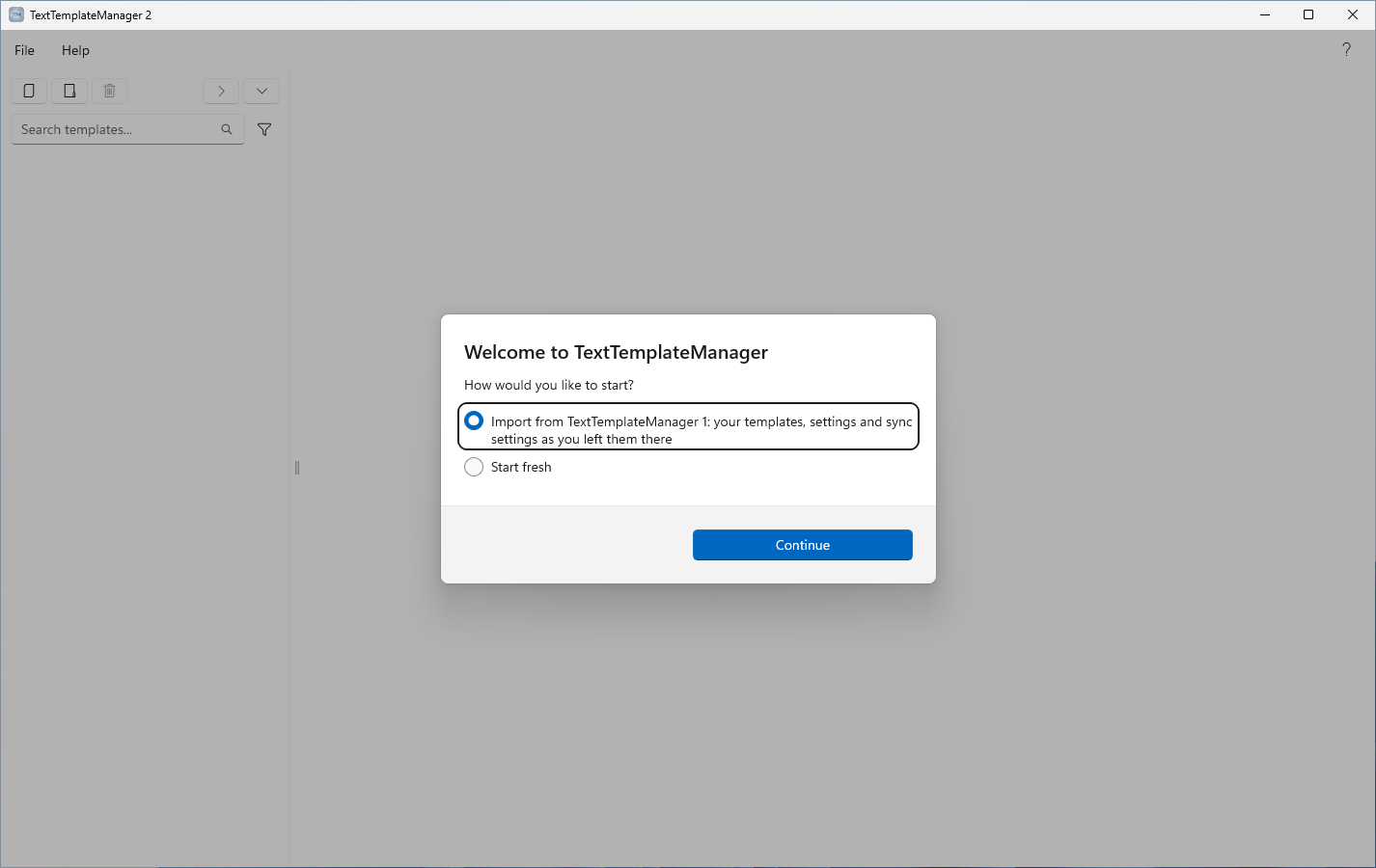
If TextTemplateManager 1 is still installed, you're also asked once whether to remove it. Remove TextTemplateManager 1 runs its own uninstaller; its data folder stays on this PC. If it can't be removed from here, remove it in Windows Settings ▸ Apps ▸ Installed apps.
The guided tour
Help ▸ Start tutorial walks you through the main window, the settings and Quick Paste step by step: each step highlights a part of the window and explains it on a card beside it. The tour uses sample templates, so your own templates and settings are never changed; while it runs, the window can't be used and the Quick Paste shortcut and the browser connector are paused. For its last part the tour opens Quick Paste itself; there it never pastes anything. Next and Back move between the steps, and Skip tutorial, the close button or Esc end the tour at any time.
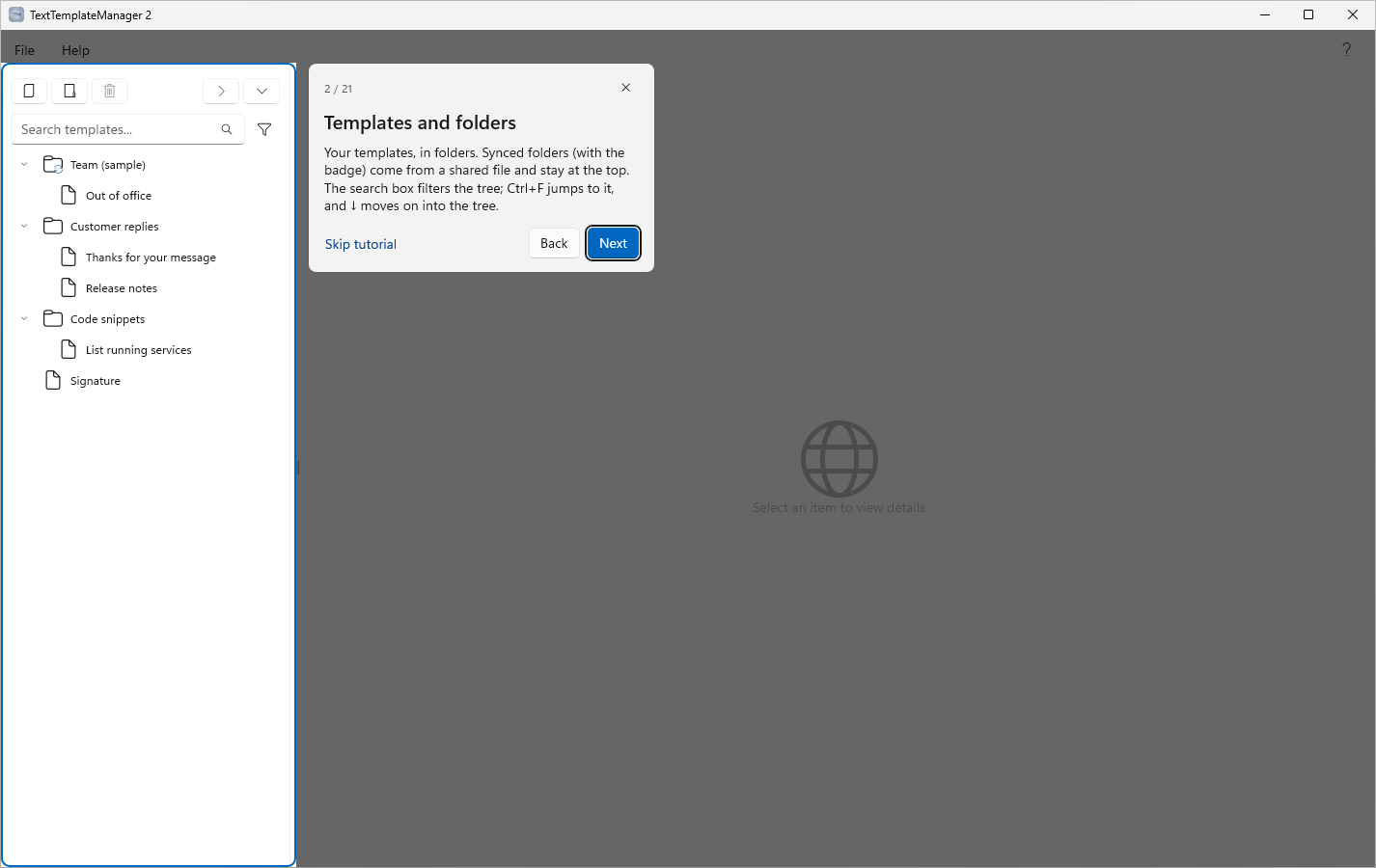
When you start TextTemplateManager the first time, it offers the tour: right after Start fresh, or after the restart when you import from TextTemplateManager 1. Take the tour starts it, Later (or Esc) asks again on the next start, and Don't show again stops the offer. Once you've started the tour, from the offer or from the Help menu, it isn't offered again. If you restore a backup on the first start, the tour isn't offered; you can still start it from the Help menu.
What's new
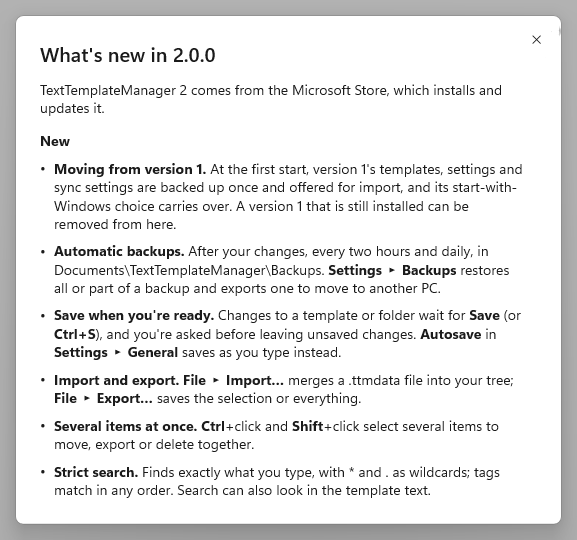
After an update, the first time the window opens it shows what's new in that version, once. Close it with the X in its corner or Esc.
The main window
The main window is divided into two panes:
- The left pane contains the template tree and a search box. The tree holds your folders and templates, including any synchronized folders, which are pinned to the top.
- The right pane shows the editor for the currently selected template, or the title field for a selected folder. When nothing is selected, it shows a placeholder.
The toolbar above the tree provides buttons to add a template, add a folder, and delete the selected item, and on its right two buttons to collapse and expand all folders at once. The menu bar provides the File and Help menus, and the quick-help button in the top-right corner opens a short in-app reference.
Templates and folders
Creating items
Use the toolbar to add a new template or folder. New items are placed relative to the current selection: inside the selected folder, alongside a selected template, or at the top level when nothing is selected. New items are given a unique default name, which you can change at any time.
Organizing the tree
Drag items to reorder them or to move them between folders. Folders may contain both templates and other folders; a template is always a leaf and can never contain other items. Where an item lands depends on where you drop it: on the upper half of a template it goes above, on the lower half below. On a folder, the middle drops it into the folder, the top or bottom edge beside it; just below an expanded folder it goes to the top of that folder's contents. Dropping on the empty space below the tree moves it to the end of the top level. Expansion and selection are preserved as you work.
To move an item out to the top level, drag it there, for example onto the empty space below the tree. Click an empty area of the tree to clear the selection — with nothing selected, new templates and folders are created at the root. From the keyboard, Esc steps back one level at a time: from the tree to the search box, then it clears the search text, and with the search box already empty it clears the selection.
To work on several items at once, select them as in File Explorer: Ctrl+click adds or removes an item, Shift+click selects all visible rows between the last clicked item and this one. From the keyboard, Shift + ↑ / ↓ extends the selection row by row and Ctrl + A selects all visible rows. The editor shows the last clicked item. Dragging one of the selected items moves all of them together (they keep their order); if one of them can't go there, nothing moves. Delete (key, toolbar button, or right-click on one of the selected items) deletes them all after one confirmation; File ▸ Export… or Export … items in the right-click menu saves them into one .ttmdata file (see Backup and export). Synced folders themselves and items in read-only synced folders are never deleted this way. Typing in the search box starts the selection over from the last clicked item.
The search box filters the tree: every word you type must appear in an item's title or tags, in any order, and a word's letters only need to appear in order, not next to each other (mtg finds Meeting). Folders holding a match stay visible and open. To look inside the templates' text as well, open the filter button beside the search box and turn on Search template text; a dot on the button shows it is on. It stays on until you turn it off, in both the main window and Quick Paste.
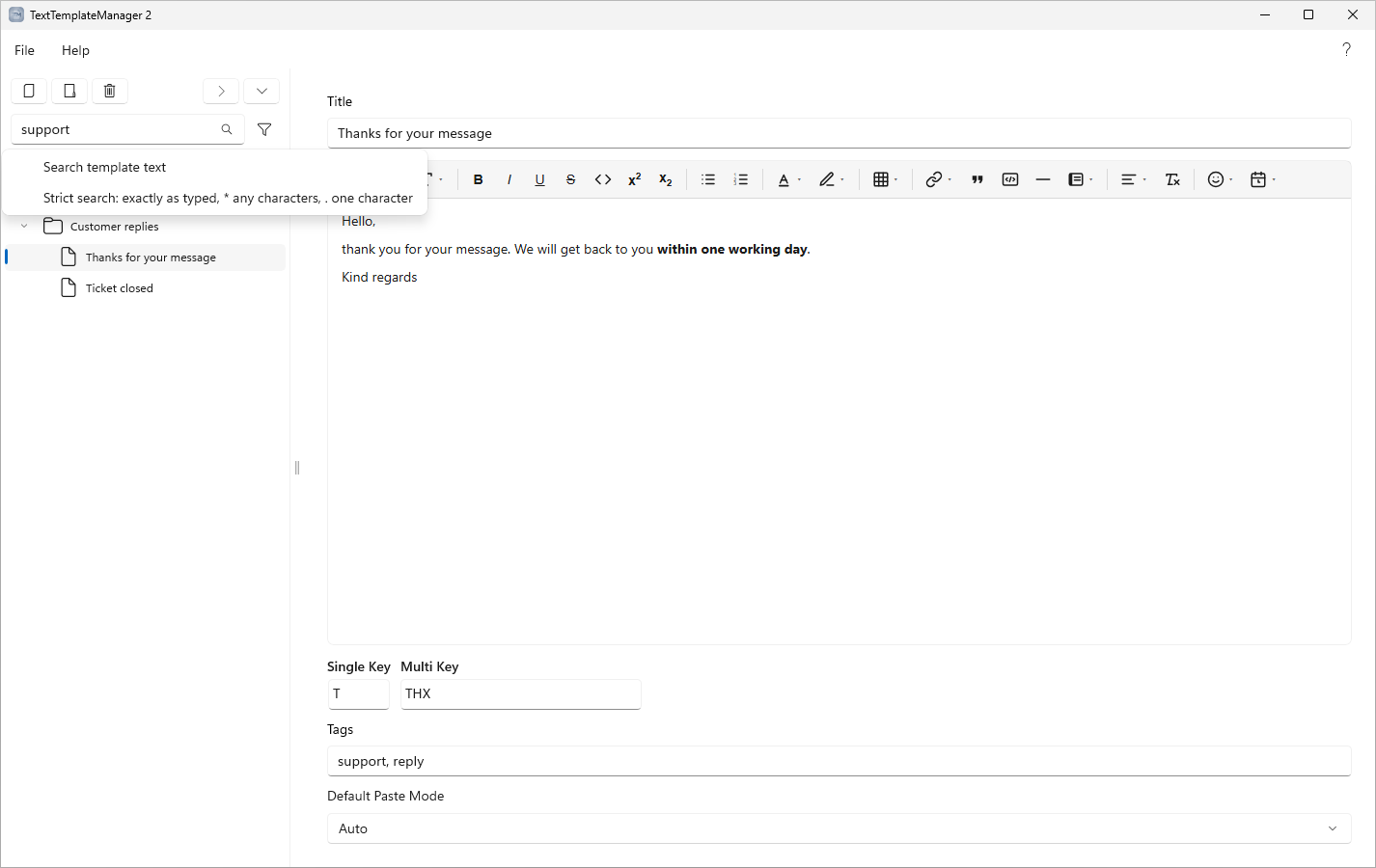
For an exact search, turn on Strict search on the same button. The search box then finds exactly what you type, anywhere in an item's title, its tags or (with Search template text) its text: several words as one phrase in the order typed, without the letter skipping of the normal search; upper and lower case don't matter. lunch finds A lunch order, and so does unch ord, but lunch today doesn't find Lunch order for today. Tags are the exception: there the words may come in any order, each one found in one of the tags, so billing support finds a template tagged support, billing. * stands for any characters (also none) and . for exactly one character, so invoice * reminder finds Invoice payment reminder, and colo.r finds Colour but not Color. To search for a * or . itself, put a backslash before it (v2\.0).
From the search box, ↓ moves into the tree, the same way as in Quick Paste: if the text cursor isn't at the end yet, the first ↓ moves it there.
The template editor
Selecting a template opens it in the editor, which supports bold, italic, underline, strikethrough, text and highlight colors, headings, bulleted and numbered lists, links, tables, callout panels, and code blocks with syntax highlighting.
The toolbar works from the keyboard too. It is one stop of the main window's Tab order: the arrow keys (← / →, Home, End) move along its buttons, Enter opens a button's menu (text and highlight colors, table, alignment, symbols) and Tab moves into it, Esc closes the menu again. Tab from the toolbar goes into the text, with the cursor at the end. In the text, Tab nests a list item (Shift + Tab moves it back out), moves to the next table cell and indents a line in a code block (Shift + Tab takes the indent off again); anywhere else Tab moves on to the template's shortcuts and Shift + Tab goes back to the toolbar. Ctrl + Tab always moves on. In the table menu, the arrow keys choose the number of rows and columns and Enter inserts the table.
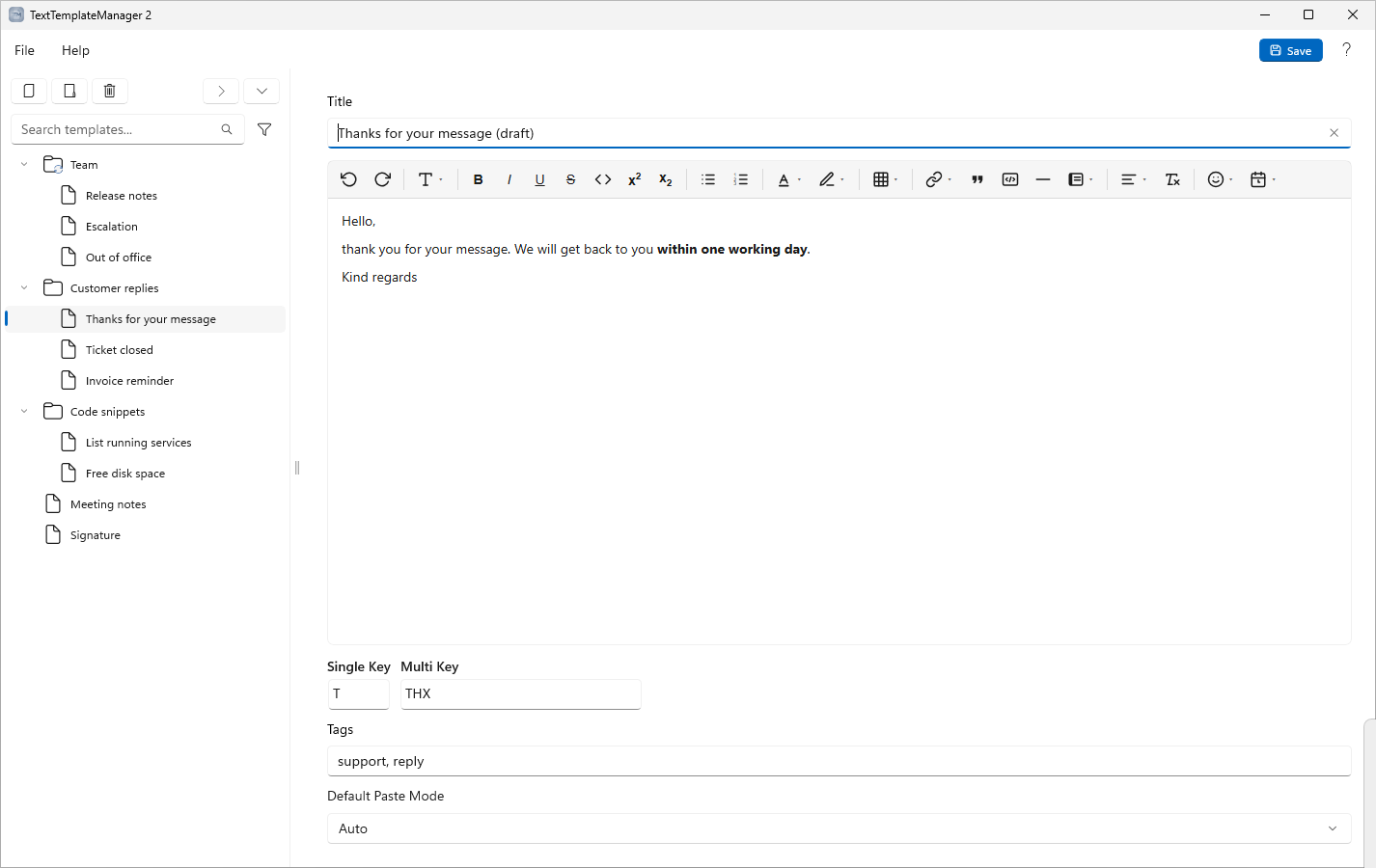
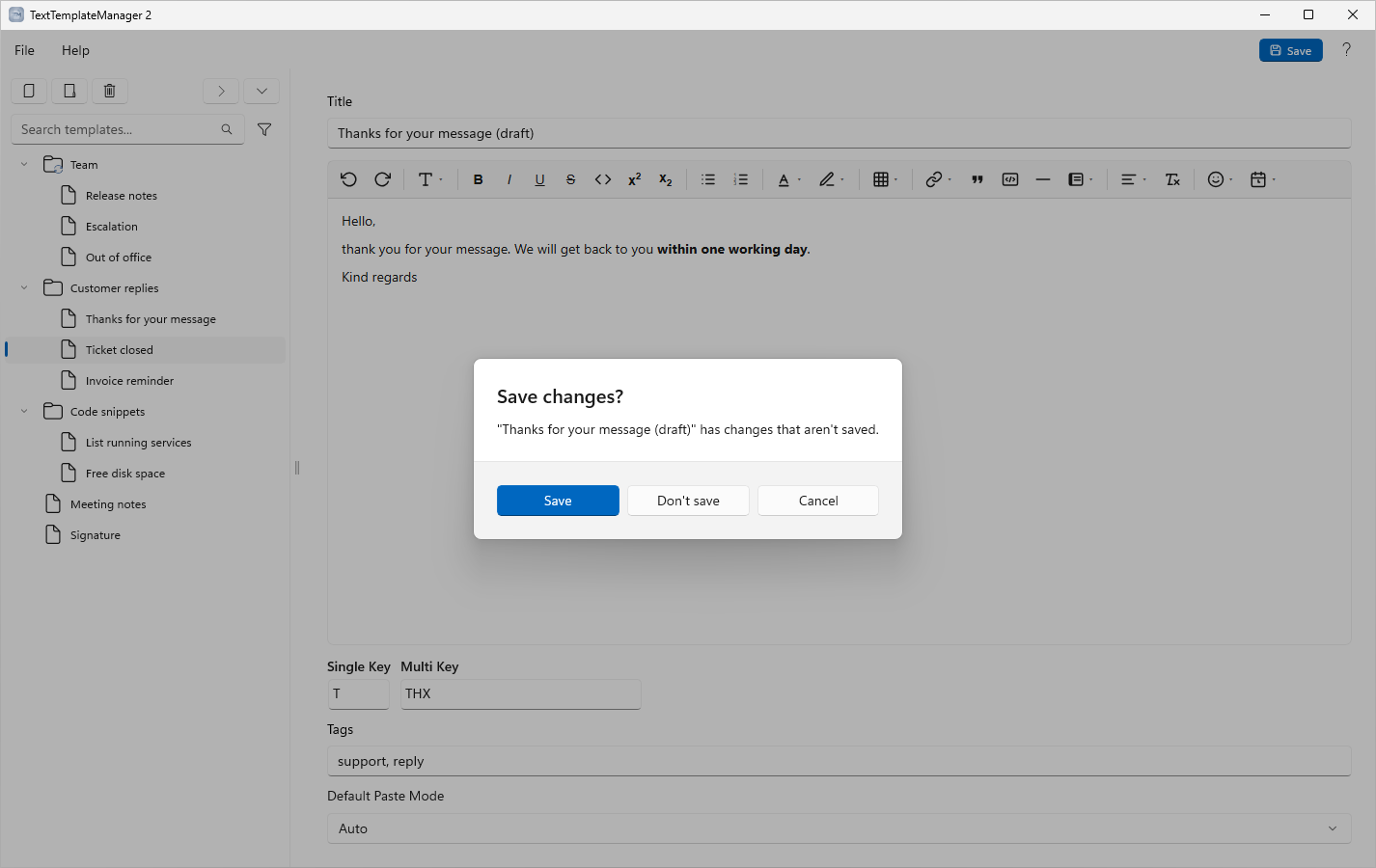
Changes to a template or folder (its title, text, tags, shortcuts and default paste mode) wait for you to save them: a Save button appears in the top-right corner, next to the help button, and Ctrl+S saves too, also while typing in the editor. If you select another item, close the window or exit while changes aren't saved, you're asked whether to Save them, Don't save them (the item goes back to how it was last saved), or Cancel (you stay on the item, changes kept, and the window stays open). A brief Saved indicator appears each time your data is written. To save as you type instead, switch on Autosave in Settings ▸ General. Adding, deleting, moving and importing items are always saved at once.
Ctrl+click a link to open it in your default browser, and hover over a link to see where it points. A plain click just places the cursor so you can edit the link.
Code blocks
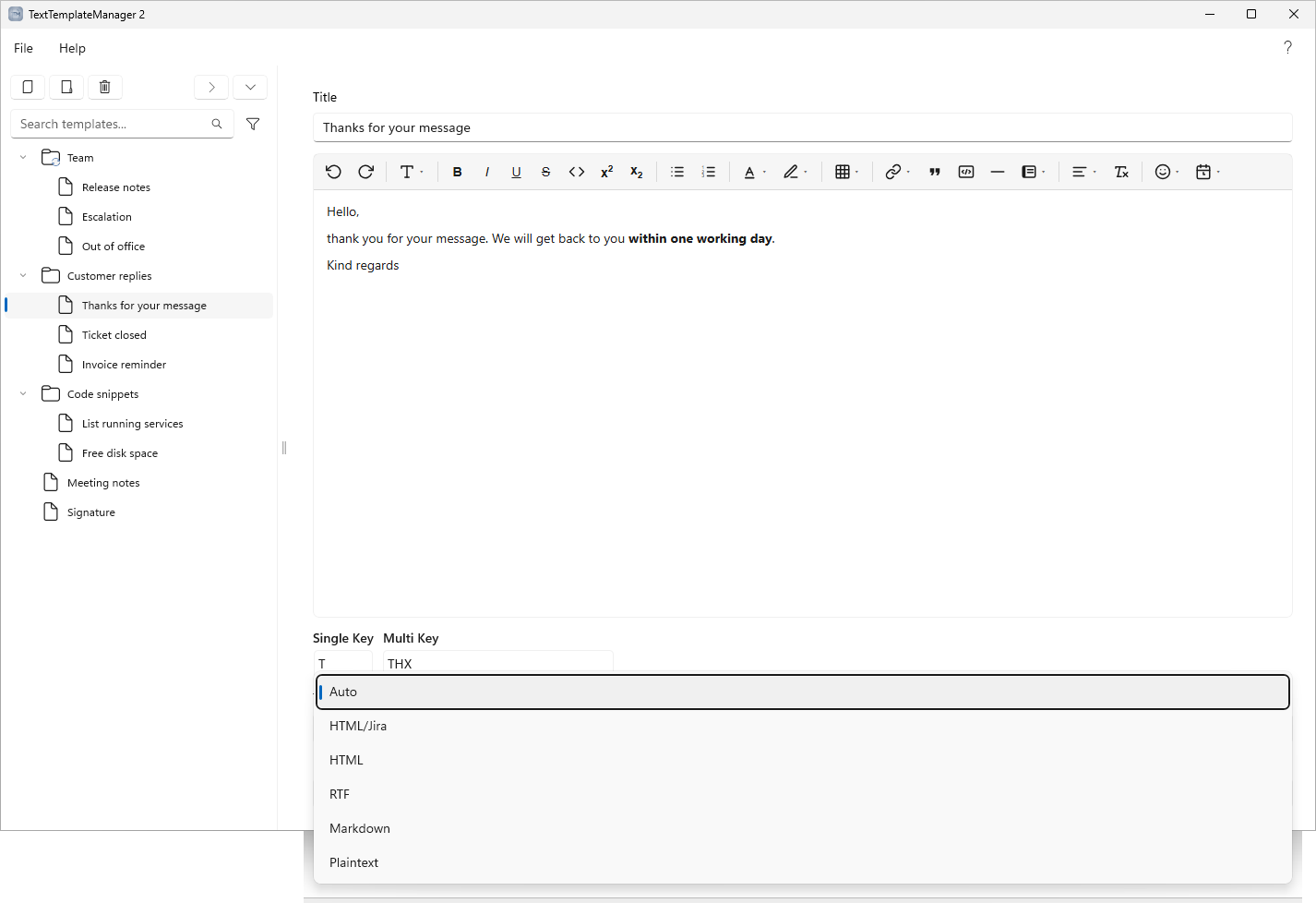
The Code block button on the toolbar formats the current block as monospaced code with a line-number gutter (the Preformat entry in the text-format menu is the same style without the numbers). A picker in the block's top-right corner sets the language: it auto-detects by default, or you can choose PowerShell, Python, Batch/cmd, Bash, JSON, JavaScript, TypeScript, HTML/XML, SQL, C#, YAML, Markdown, or Plain text to turn colouring off. Colours follow the light/dark theme and also appear in the read-only preview; the template itself still stores plain text.
Long lines wrap to the next row instead of scrolling sideways, with the line numbers staying
aligned. Typing is indentation-aware: Enter keeps the current indentation and steps in after
an opening (, [, { or a backtick, while typing a closing ), ] or } steps back out, and
pasting multi-line code re-indents it to fit where you drop it.
Callout panels
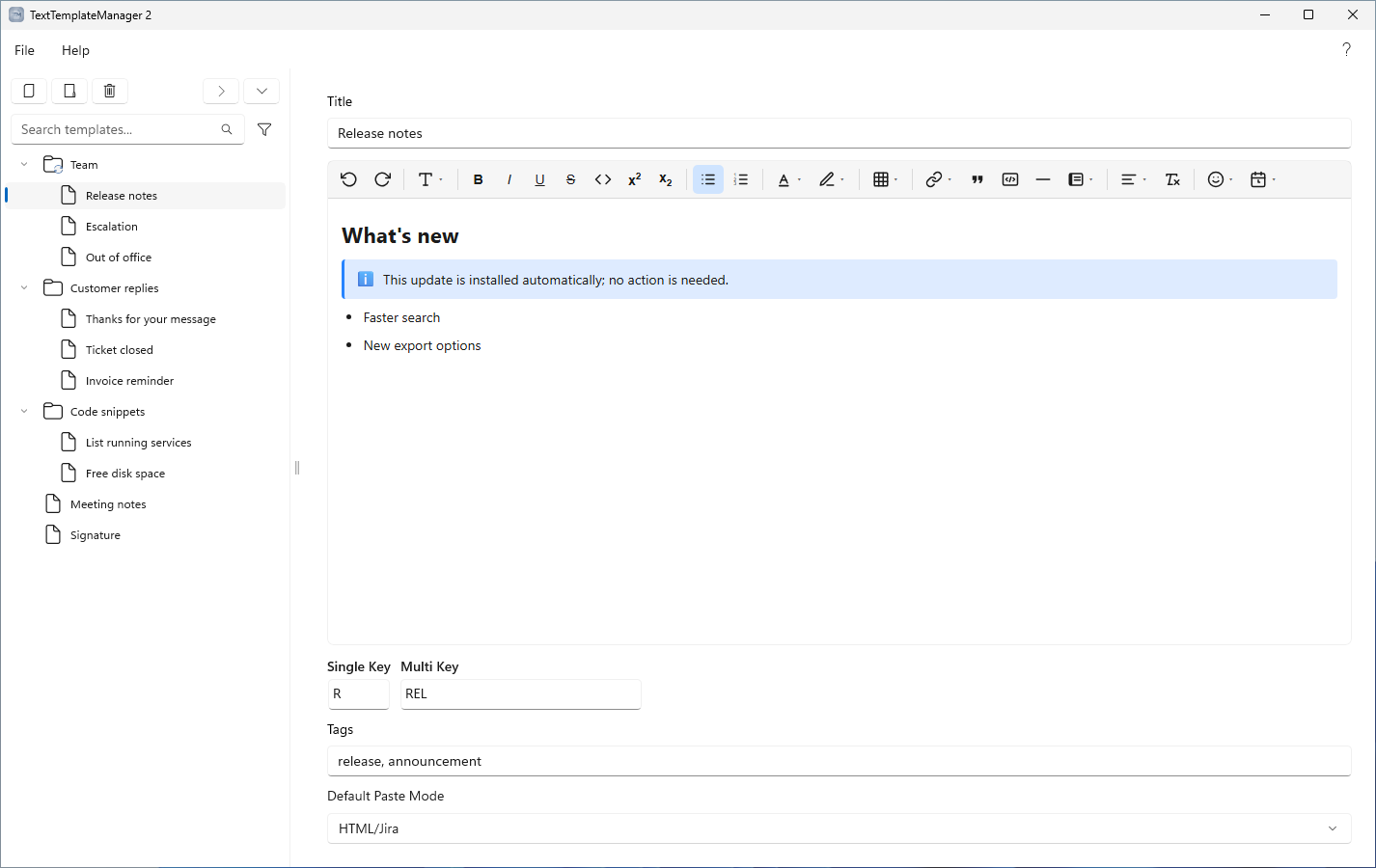
The Panel button on the editor toolbar wraps the current block in a colored callout, in one of five styles: Info, Note, Success, Warning, or Error. Choosing the panel's current style again removes the panel; choosing a different style changes it.
To move the cursor out of a panel, press ↓ or → at the end of its last line, or press Enter on an empty last line (a first Enter adds a line inside the panel, a second steps out) — the same way code blocks behave.
Panels adapt to whichever paste mode you use (see Paste modes): they become native panels in Atlassian Jira, colored boxes in email and word processors, and a labeled quote in Markdown.
Template properties
Each template exposes the following properties:
- Title — the display name, shown in the tree and searchable.
- Tags — optional, comma-separated keywords that are also included in search.
- Default paste mode — the format used when the template is pasted (see below).
- Single-key shortcut and Multi-key shortcut — optional shortcuts for the Quick Paste window (see Keyboard shortcuts and conflicts). Shortcuts consist of letters and digits only;
-and.are reserved as the separator between a synced folder's prefix and its shortcuts.
Paste modes
The paste mode determines how a template is placed on the clipboard and inserted into the target application:
The modes are listed below in the order they appear in the app.
| Mode | Description |
|---|---|
| Auto | Chooses the most suitable format for the target application — the most broadly compatible choice. Callout panels render as colored boxes. |
| HTML/Jira | HTML tuned for Atlassian Jira: callout panels and text colors are preserved so Jira's comment editor rebuilds them natively (colors snap to Jira's nearest palette color). |
| HTML | HTML markup. Callout panels are rendered as colored boxes, for broad compatibility with email clients, word processors, and web apps. |
| RTF | Rich Text Format. Callout panels are rendered as shaded, bordered boxes. |
| Markdown | Markdown source text. Callout panels become a labeled blockquote. |
| Plaintext | Unformatted text only. |
Quick Paste
Quick Paste is a compact window that lets you insert a template into whichever application you were using, without leaving the keyboard.
Press the configured global hotkey (see Settings ▸ General) from any application to open it. Quick Paste remembers the application you came from and returns focus to it when a template is pasted.
Remote Desktop (RDP): If TextTemplateManager is running on both your local computer and a remote computer you connect to over RDP, the global hotkey always opens Quick Paste on the local computer — Windows delivers a registered global hotkey locally, so it never reaches the remote session. Give each machine a different hotkey (in Settings ▸ General), or run only one instance, to avoid the clash.
Inserting a template
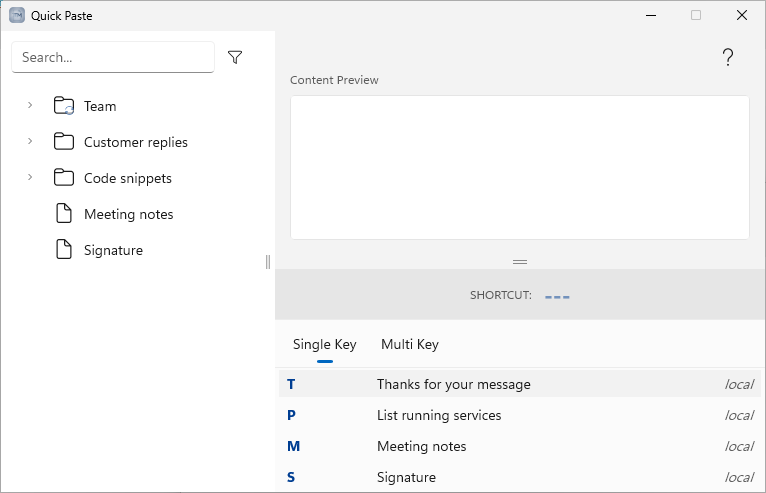
- Single-key shortcut — Quick Paste opens ready for shortcuts (the search box isn't focused), so just press the key assigned to a template to paste it immediately. If the same key is assigned in more than one area, the local template takes precedence, followed by synchronized folders in their configured order. You can also browse the list with the ↑ / ↓ arrow keys and press Enter to paste the highlighted row. A letter or digit with no template assigned sounds a short error tone rather than doing anything — the keyboard here is for shortcuts, so pressing Tab (or clicking) is how you move to the search box. (Once the search box has focus, letters filter instead of triggering shortcuts — see Search.)
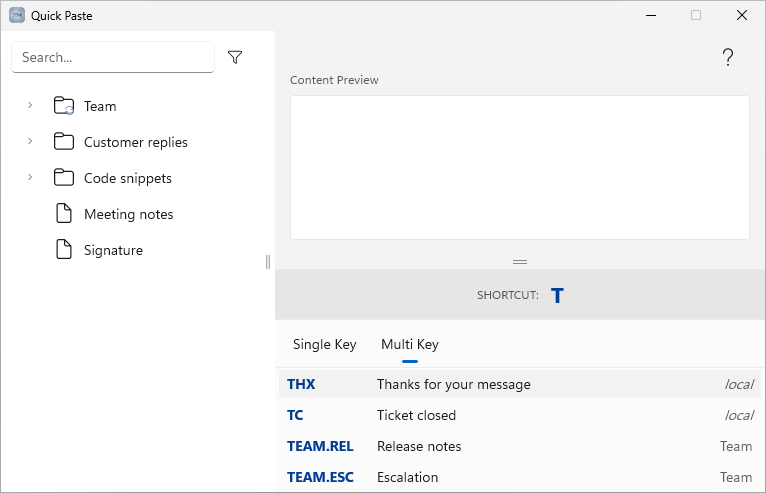
- Multi-key shortcut — hold Alt and type the shortcut. The list narrows as you type and
highlights the top match; release Alt to paste it. You don't have to type the whole
shortcut — a partial entry pastes the highlighted match. Use ↑ / ↓ while holding Alt to
move the highlight (this doesn't change what you've typed), and press Enter to paste the
highlighted row even before typing anything. If you type and then delete everything, releasing
Alt pastes nothing. Shortcuts in synchronized folders carry the folder's prefix (for
example,
AND-MSG); the separator is-,.or none (set in Settings ▸ Sync). Press Backspace while holding Alt to correct a mistyped entry. - Paste as plain text — while still holding Alt, end a multi-key entry with Shift + - (which produces
_) to insert the template as unformatted text, regardless of its default paste mode. - Search — click the search box (or press Tab or Ctrl + F) to filter the tree and the shortcut lists, matched the same way as in the main window (including Search template text and Strict search, which the filter button here turns on and off too); matching templates display their folder path. While the search box has focus, every letter filters and never triggers a shortcut; press Esc to return to shortcut mode. In the search box the arrow keys move the text cursor — ↑ to the start, ↓ to the end — and pressing ↓ again once the cursor is at the end (or the box is empty) moves into the template tree, the same as Tab. From the tree, Esc returns to the search box with your text intact, and typing a letter carries straight on filtering. Double-click any template, in either the tree or the shortcut lists, to paste it.
The shortcut lists at the bottom of the window show the available single-key and multi-key shortcuts, together with the area each belongs to (a synchronized folder's name, or local). Switch between them with the Single Key and Multi Key tabs.
Whichever tab is showing, its first row is highlighted, ↑ / ↓ move the highlight, and Enter pastes it — so the Multi Key list can be browsed with the mouse and keyboard without holding Alt. (This applies in shortcut mode, when neither the search box nor the tree has focus; the arrows do something different in each of those, as described above.) The arrow keys wrap around: pressing ↓ on the last row returns to the first, and ↑ on the first row jumps to the last.
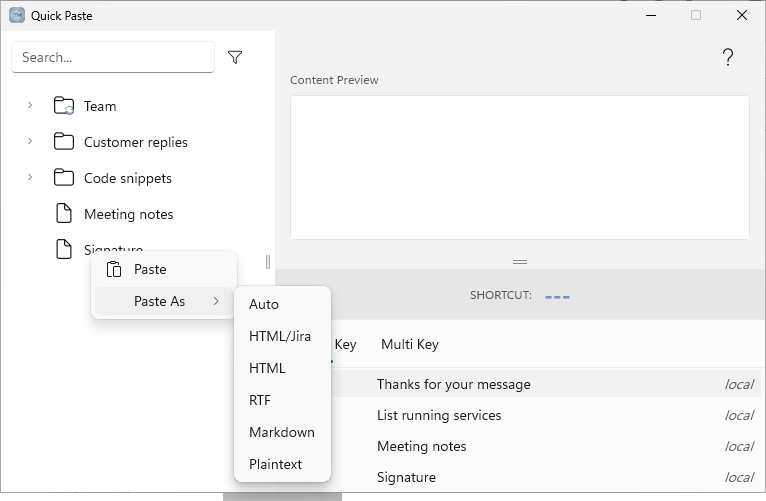
To paste with a format other than the template's default just this once, right-click it (in the tree or a shortcut list) and choose Paste As:
Keyboard shortcuts and conflicts
Every shortcut belongs to an area. An area is either a specific synchronized folder or the set of everything outside synchronization (referred to as local).
- A single-key shortcut may be reused in different areas. When a key is assigned in more than one area, Quick Paste resolves it by priority: the local template first, then synchronized folders in the order configured in settings. Assigning the same single key twice within the same area is a conflict and is not permitted; the application reports it and does not save the duplicate.
- A multi-key shortcut is compared on its effective form — a synchronized folder's prefix and
separator are folded in first (so
MSGin a folder prefixedANDbecomesAND-MSG), which keeps otherwise-identical shortcuts in differently-prefixed folders apart. When two areas do resolve to the same effective shortcut — for example a localANDMSGand a folder prefixedANDwith the separator set to none holdingMSG— it is treated just like a single-key cross-area duplicate: allowed, resolved local-first then sync order. A duplicate within one area is a conflict and is not saved.
Cross-area duplicates (single- or multi-key) are permitted and are shown as an informational note
rather than an error. When you move a template into an area that already uses its shortcut, the
application resolves the clash automatically: a duplicate single-key shortcut is removed from the
moved template, and a duplicate multi-key shortcut receives a numeric suffix (for example, MSG
becomes MSG1).
Any outstanding conflicts and notes are listed in a small panel in the top-right of the main window. Same-area conflicts must be resolved, so the panel stays until they are; a panel showing only cross-area notes can be dismissed with its × button, or hidden entirely with Hide cross-area shortcut warnings in Settings ▸ General.
Settings
Open settings from File ▸ Settings. It has a General, an Integrations, a Sync and a Backups tab (for backups, see Automatic backups and Restoring a backup).
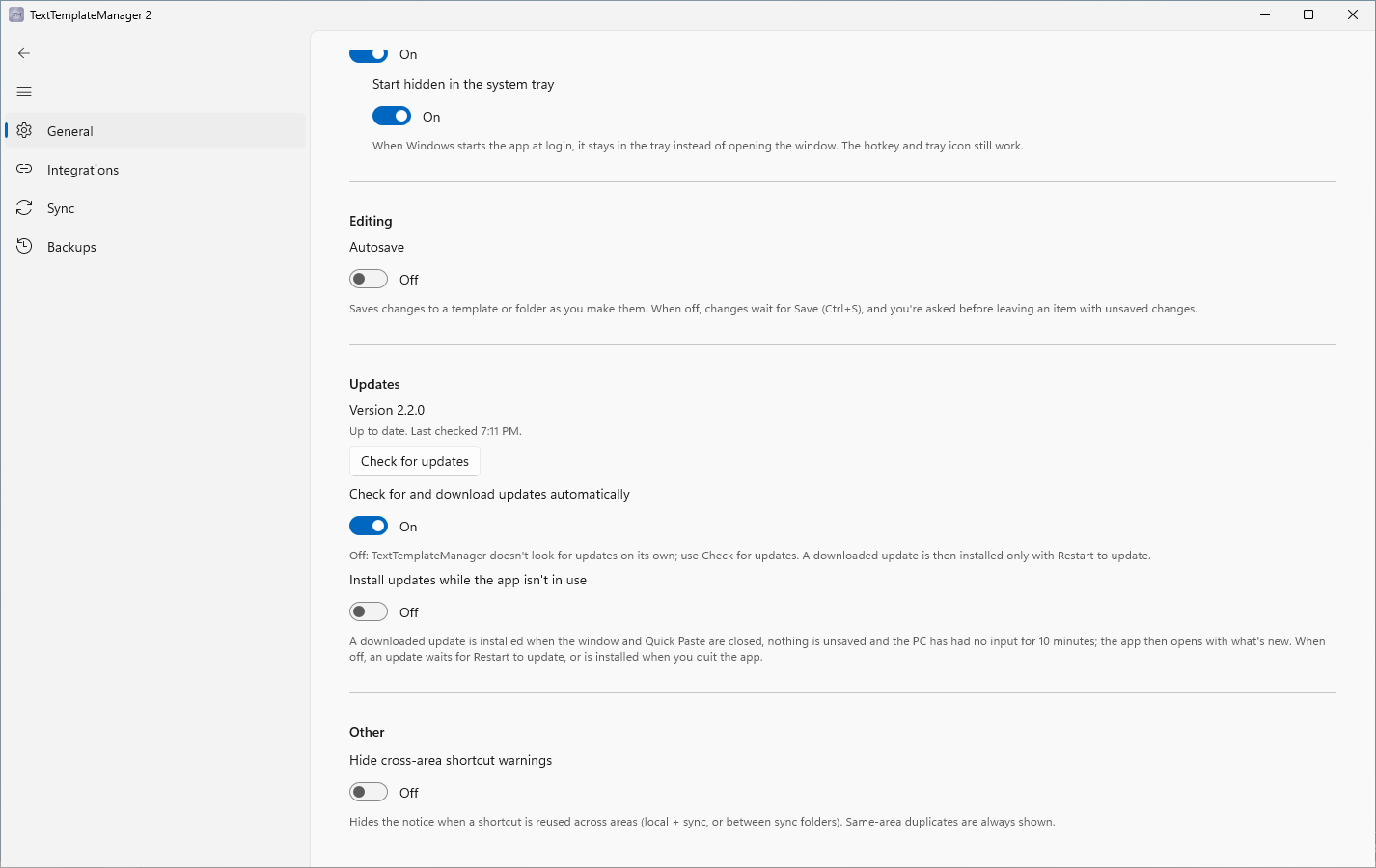
General
Quick Paste
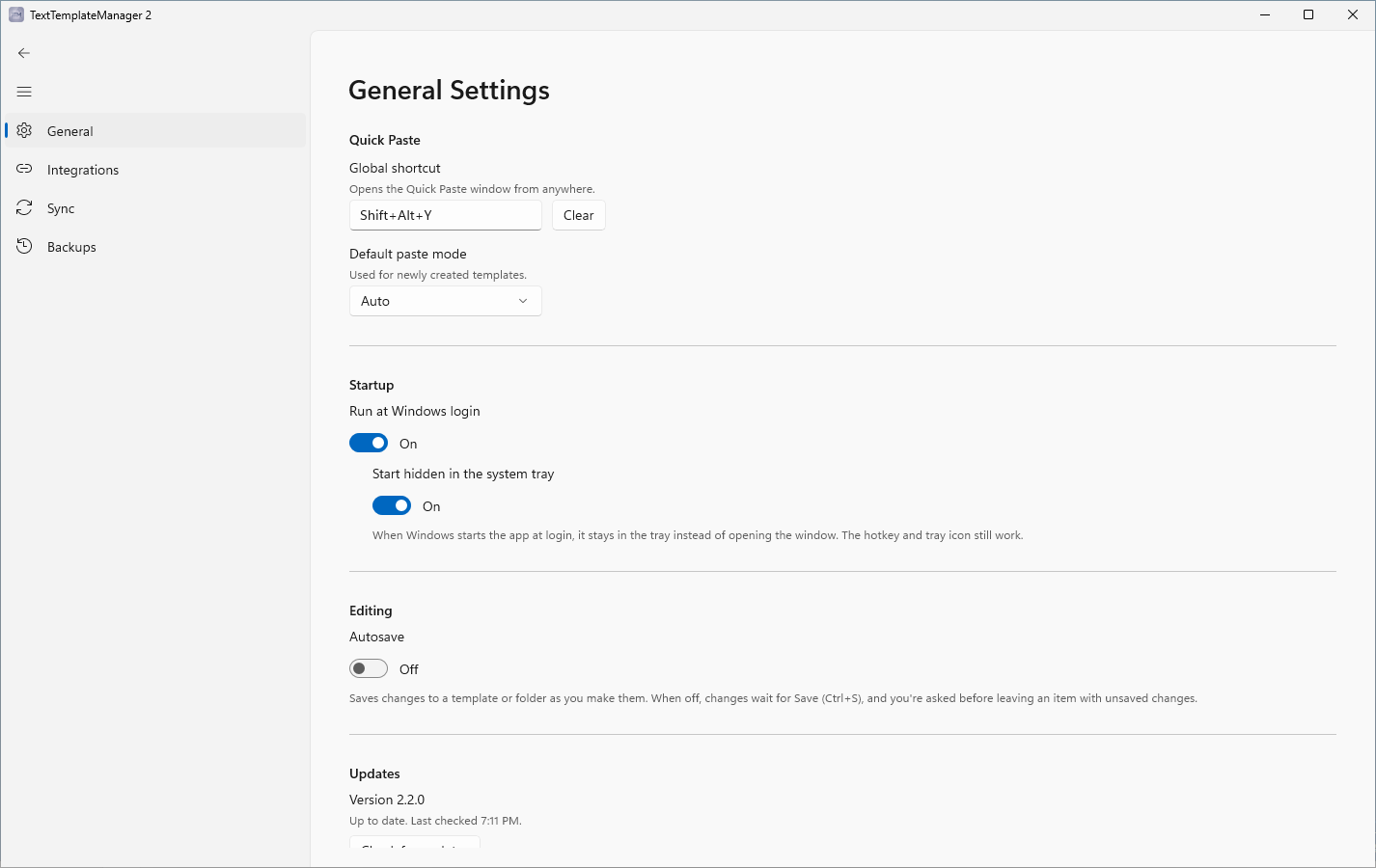
- Global shortcut — the hotkey that opens Quick Paste from any application; click the field and press the combination. If another application already uses that combination, a warning appears below the field (and once at startup); choose a different one.
- Default paste mode — the mode applied to newly created templates (see Paste modes).
Startup
- Run at Windows login — start the app automatically when you sign in; on by default, from the first time you open the app. This is the same switch as the app's entry in Windows Settings ▸ Apps ▸ Startup and on the Startup tab of Task Manager. If you switch it off there, Windows only lets you switch it back on there; the app then says so below the switch.
- Start hidden in the system tray — on by default: when Windows starts the app at sign-in, it stays in the tray instead of opening the window; the Quick Paste hotkey and tray icon still work. Starting the app yourself always opens the window.
If TextTemplateManager 1 was set up on this PC, both switches take over its choices the first time this version finds it.
Editing
- Autosave — off by default: changes to a template or folder wait for Save (see The template editor). On: they are saved a short time after you stop typing, and there is no Save button.
Updates
- The version that runs, what the updater is doing (up to date, downloading, ready), and a button for the next step: Check for updates, Download, Try again or Restart to update, the same as on the notice in the main window. See Updates.
- Check for and download updates automatically — on by default. Off: TextTemplateManager doesn't look for updates on its own; Check for updates still works, and an update it finds is installed only with Restart to update (not while the app isn't in use, and not when you quit). When automatic Store updates are turned off on this PC, a note under the switch says how updates arrive then (see Updates). If your organization set it, the switch is locked and says so.
- Install updates while the app isn't in use — off by default: a downloaded update waits for Restart to update or is installed when you quit the app. On: it's installed while nobody uses the app (window and Quick Paste closed, nothing unsaved, no input for 10 minutes), and the app then opens with what's new. If your organization set it, the switch is locked and says so.
Other
- Hide cross-area shortcut warnings — suppress the dismissible note shown when the same shortcut is used in more than one area (local and synchronized folders). Off by default; blocking same-area conflicts are always shown. See Keyboard shortcuts and conflicts.
Integrations
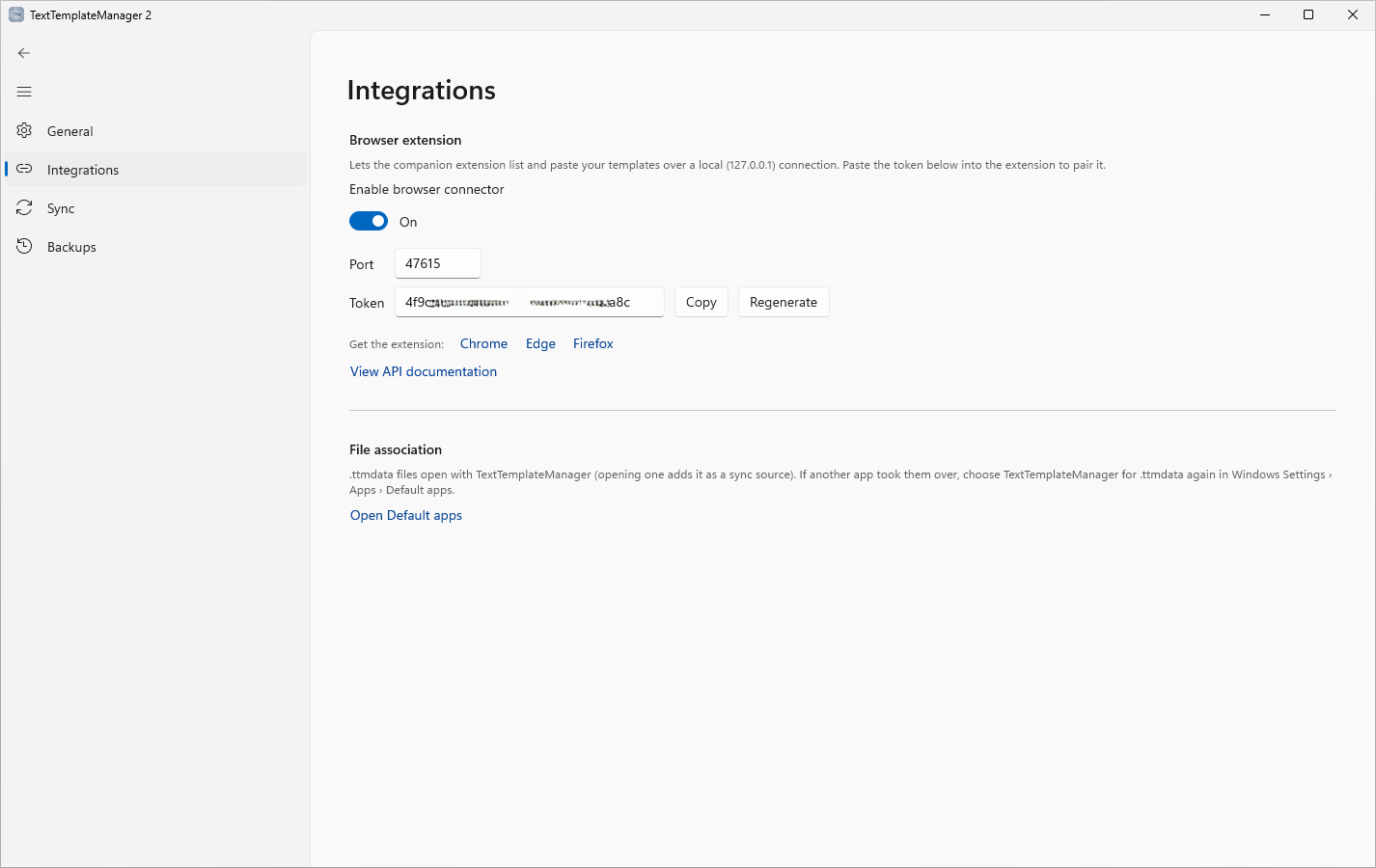
- Browser extension — enable a local connector for a companion browser extension (see below).
- File association —
.ttmdatafiles open with this app (opening one adds it as a sync source — see the Sync tab). If another program took them over, Open Default apps takes you to Windows Settings ▸ Apps ▸ Default apps, where you can choose this app for.ttmdataagain.
Browser extension
The browser connector lets a companion browser extension (Chrome, Edge, or Firefox) list your templates, paste them from the browser, and create new templates from selected text. It is off by default; turn it on with Enable browser connector in Settings ▸ Integrations.
The companion extension is TTM-Connect, available on:
When enabled, the application runs a small local service (127.0.0.1 — loopback only, never exposed
to the network) that the extension talks to. Pairing is by token:
- Turn on Enable browser connector. A random token is generated and shown, along with the port. (only on first time Activation, a token is generated, future disable/re-enable will list the previous token)
- Copy the token (and the port, if you changed it) into the extension's settings. Every request must present the token, so only an extension you have paired can reach your templates.
- Regenerate issues a new token and invalidates the old one — re-pair the extension afterwards.
- If the port can't be used (another app already uses it, for example an older TextTemplateManager that is still running, or Windows has reserved it), the application tells you at startup and shows a warning in Settings ▸ Integrations. Choose a different port there and set the same port in the extension.
The connector serves template names, ids, and the available paste modes, and returns a template's content rendered in a chosen paste mode (or the template's default). It can also create a new template from content the extension sends (e.g. the current page selection); the new template is added to your local area. Only browser extensions may use it — an ordinary web page cannot — and the application must be running. Developers can find the full API (endpoints, security, examples) via the View API documentation link in settings.
Content safety. Because a browser selection can contain untrusted markup, everything the extension sends is cleaned before it becomes a template, and the content the connector hands back is cleaned the same way. It uses a strict allow-list followed by a deny-list hardening pass:
- Kept: ordinary formatting — text, headings, bold/italic/underline/strikethrough, sub- and superscript, lists, tables, blockquotes, code blocks, text colour and highlighting, and links.
- Code blocks are preserved exactly. Code in any language — including HTML or JavaScript shown as text inside a code block — passes through untouched; it is treated as text, never as live markup.
- Removed: anything that could run or load from the network —
<script>,<style>, embedded frames/objects, images and other media, form controls, SVG/MathML, and HTML comments (dropped with their contents); event-handler attributes (onclick,onerror, …);javascript:,vbscript:anddata:links (onlyhttp,https,mailto,teland relative links are kept); and active or remote CSS (only inert style properties such as colour, background colour, text alignment and width survive). Links that open a new tab getrel="noopener noreferrer". Any other unrecognised tag is unwrapped — its text is kept, the tag is dropped.
Sync
Synchronization lets several people, or several of your own computers, share the same set of templates. A synchronized source is an ordinary template file stored in a shared location — most commonly a cloud folder such as OneDrive — and surfaced in the tree as a pinned folder at the top. Synchronized files are watched for external changes and reconciled automatically, so edits made elsewhere appear without restarting the application.
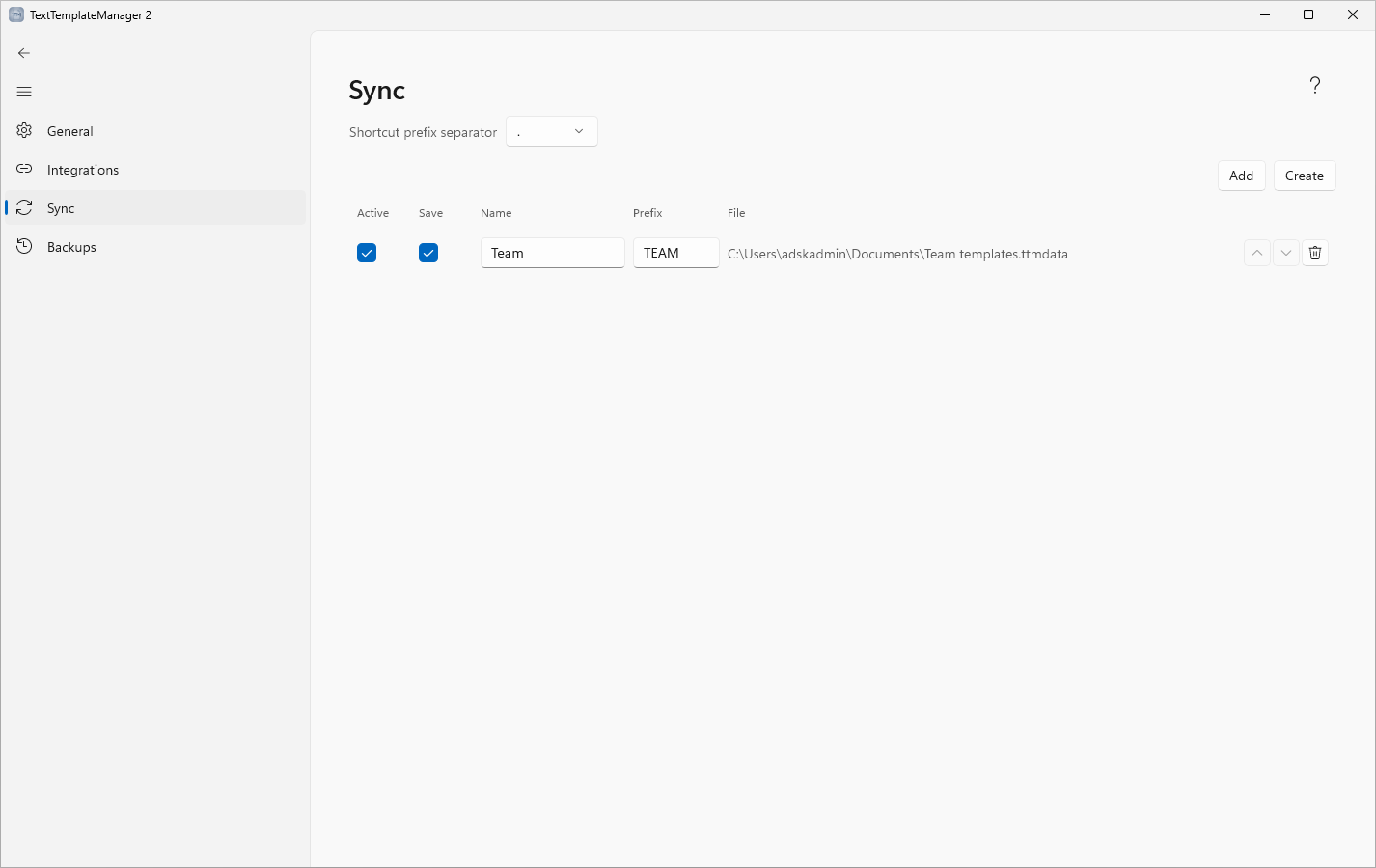
To add a source, click Add to link a shared file that already exists, or Create to make a new one — for example in a OneDrive folder so it is shared automatically:
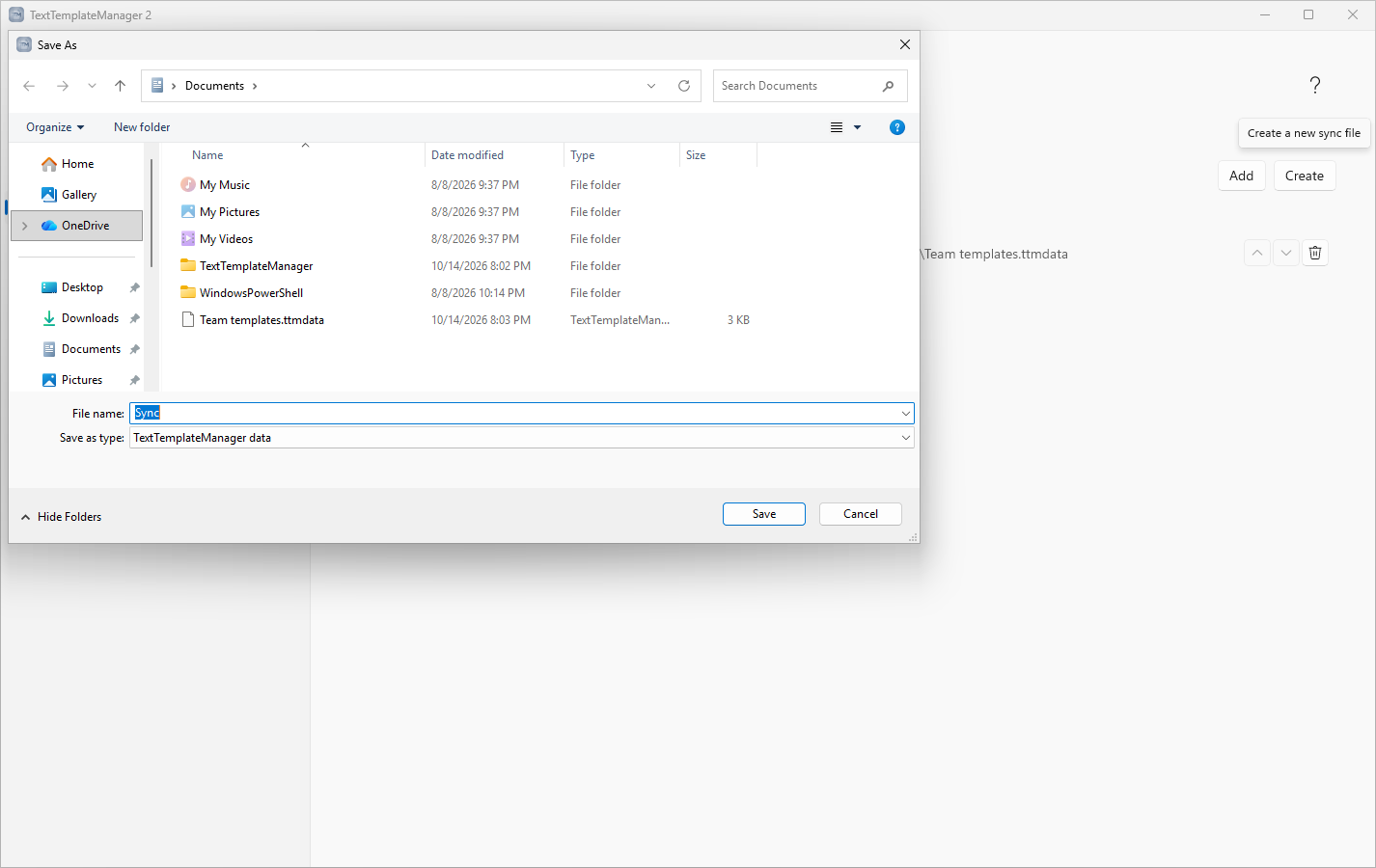
The source then appears as a row, shown in the tree as a pinned folder:

Each source offers the following options:
- Active — load the source into the tree as a pinned folder. Clearing this hides the folder without deleting the underlying file, or removing it from the list completely.
- Save — when enabled, the folder is editable and your changes are written back to the shared file. When disabled, the folder is read-only and the shared file always takes precedence on reload.
- Name — the folder's title as shown on this computer. It is set here only; the pinned sync folder's name is read-only in the tree.
- Prefix — the text that namespaces the folder's multi-key shortcuts (for example, a prefix of
ANDturns the shortcutMSGintoAND-MSG). The character joining the prefix and the shortcut is chosen at the top of the page (Shortcut prefix separator):-,., or none (the prefix joins the shortcut directly, e.g.ANDMSG). - Order — the up and down arrows set the folder's priority (the up arrow is disabled on the top row and the down arrow on the bottom row). This priority determines which template wins when a shortcut is shared across areas, and is applied immediately.
If a source's file cannot be found (for example, it has been moved, deleted or is temporarily offline), a warning icon is shown next to it, and the folder keeps showing the contents last seen in that file (its cached copy). Click the icon to:
- Recreate the file from the cached copy: writes the folder back out as the sync file where it was, or, if that folder no longer exists, where you choose. The source then uses the new file.
- Link another file…: points the source at an existing file, for example one that was moved.
If your changes can't be saved to a source's file (for example because the file is read-only, or the shared folder refuses writes), a yellow warning icon appears on its folder in the tree and on its row here; point at it to see the reason. Your changes are kept, and the app keeps trying: as soon as the file can be written again, they are saved and the warning goes away. A file that is briefly locked, for example while OneDrive uploads it, is simply read again once it is free.
You can also add a source by opening a .ttmdata file — double-click it in File Explorer, or use
Open with ▸ TextTemplateManager. The app comes to the front on this page with the file linked as an active
source; if the file is already linked it is simply shown here, and the app's own data file is never
added. (TextTemplateManager runs as a single instance, so opening a file always uses the window that
is already running.)
Backup and export
- File ▸ Export… saves the selected folder (with everything in it) or template to a
.ttmdatafile. With nothing selected, it saves all your local templates and folders (synced folders already live in their own files). - With several items selected, the file keeps them in tree order and keeps the folders between them: each item comes with copies of its folders down from the deepest folder the selected items share, and those copies hold only the selected items. For example, the template
f1t4from folder F1 together with folder F2 givesF1 ▸ f1t4andF2with everything in it; two templates fromF1 ▸ SubandF1 ▸ Sub2giveSubandSub2without F1. In a synced folder, the synced folder itself is never part of the file. Local items and items of a synced folder, or of two synced folders, can't be exported together: the export entries then show (not across areas) and are greyed out. - File ▸ Import… adds the templates and folders of a
.ttmdatafile to your local ones. Nothing is replaced unless you choose so. You choose where they go: - Into a new folder named after the file: a separate copy, nothing is touched.
- Directly into the tree: folders with the same name at the same level are merged. For templates that already exist (the same template, or one with the same title in the same folder) you choose to overwrite all of them, to overwrite only where the imported one is more recent, or to skip them.
Synced folders are not affected: copies of them in older full exports are skipped. To go back to an earlier state of everything, restore a backup instead (see Automatic backups). - Right-clicking a folder or template and choosing Export… does the same for that item, which is useful for creating a new shared source or sharing a subset of templates.
Backups use the .ttmdata format. An older .json backup still loads after you rename it to
.ttmdata — the two are the same format.
Automatic backups
The application also backs up on its own, into Documents\TextTemplateManager\Backups (outside the app's own folder, so they survive resetting or removing the app; if your Documents folder is backed up to OneDrive, so are they).
- Recent: 2 minutes after your last change, and when you quit with changes not yet backed up. The last 3 are kept.
- Every 2 hours while the application runs, if something changed. The last 5 are kept.
- Daily: at startup, and at the first change after midnight. The last 5 are kept.
- From TextTemplateManager 1: if version 1 was used on this PC, its data is backed up once at the first start, as it was, and this backup is never removed.
Each backup is one .zip file with your templates, your settings, your sync settings and a copy of every shared sync file, plus a list of their checksums. A backup only appears once it has been written completely and checked.
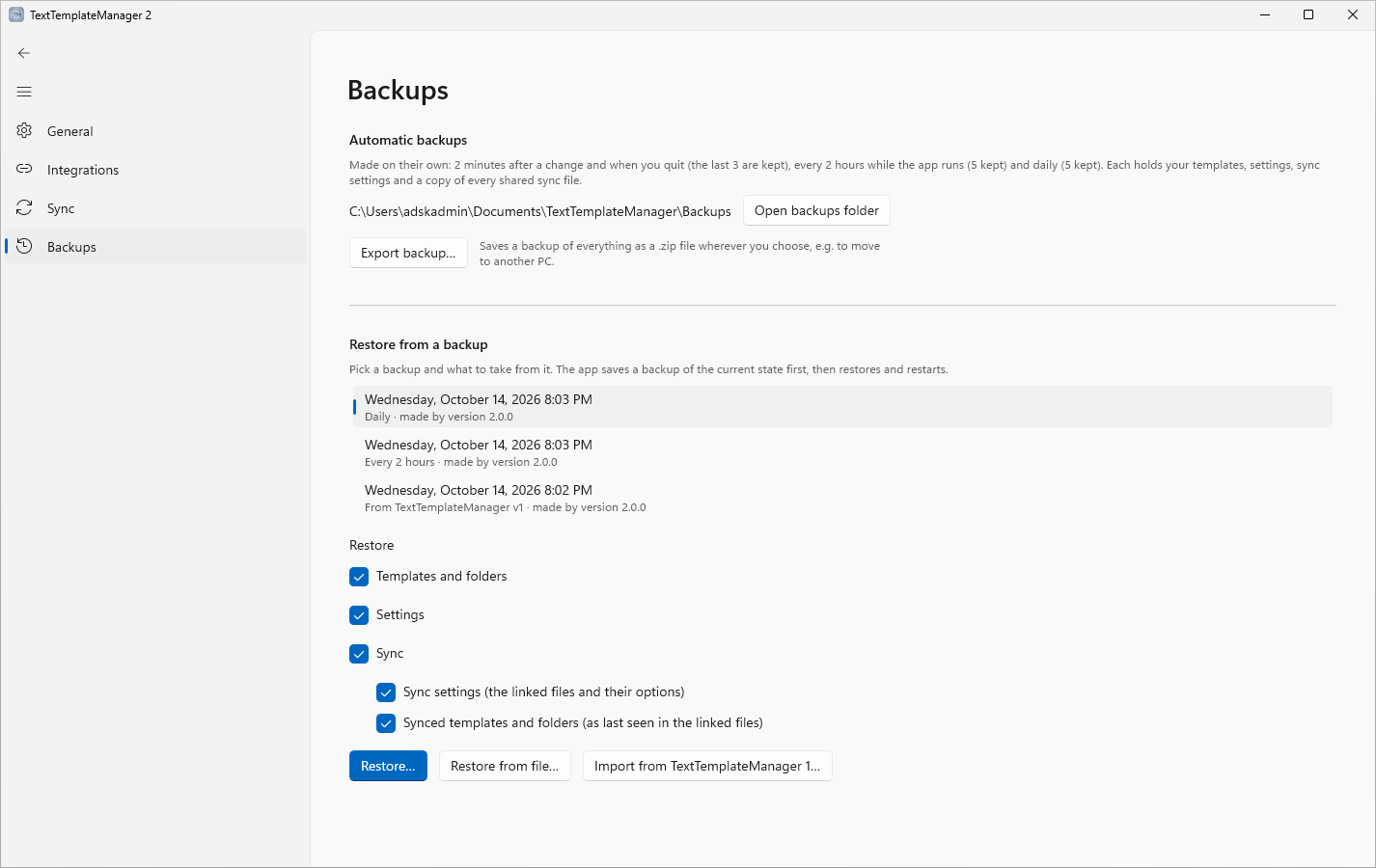
Settings ▸ Backups shows where they are (Open backups folder) and lists them, newest first. A damaged backup is greyed out and can't be chosen. Export backup… saves a backup of everything as a .zip file wherever you choose, for example to move your templates to another PC.
Restoring a backup
- In Settings ▸ Backups, select a backup. The newest one is selected when you open the page.
- Choose what to restore. Everything the selected backup holds is ticked, except Synced templates and folders: they write into shared sync files, so tick them yourself when you want that. A part the backup doesn't hold (for example sync settings, if you had no synced folders then) is greyed out.
- Templates and folders: your local templates and folders.
- Settings.
- Sync, made of two parts you can also choose one by one: Sync settings (the linked files and their options) and Synced templates and folders (the synced folders as last seen in their files, which is what they show while a file is missing). With only one part chosen, Sync shows a dash.
- Click Restore… and confirm. To restore an exported backup instead, click Restore from file… and pick the
.zipfile: it is checked the same way, added to the top of the list and offered for restoring with everything it holds; cancel the confirmation to change what is ticked, then click Restore…. To take over version 1's data, click Import from TextTemplateManager 1… (shown when TextTemplateManager 1 was used on this PC): its backup is made first if there isn't one yet, then selected and confirmed the same way. Of the settings, only those version 1 had are replaced. - When restoring sync settings, you're asked about each linked sync file of the backup that isn't on this PC. Without Synced templates and folders ticked, Choose a location… is replaced by Link another file…:
- Recreate it there (the folder still exists) or Create the folder and the file (the folder is gone too): the file is written where it was, from the backup's copy.
- Choose a location…: the file is written where you choose, and the sync settings point there. This is the only way when the location can't exist on this PC, for example a drive or network share that isn't there.
- Leave it missing: the synced folder shows its copy from the backup until the file is back (see Sync for recreating it later).
- If the backup holds no copy of the file, you can only link another existing file instead.
With Synced templates and folders ticked, you're also asked for each linked sync file you may save to (Save ticked in Settings ▸ Sync) that is there but has changed since the backup whether to keep it; the file of a read-only source always stays as it is, without asking: - Keep the file (the default): the file stays as it is, and its synced folder shows the file's contents. - Overwrite with the backup's copy: the file gets the backup's copy, for everyone who uses it. 5. When restoring Synced templates and folders without the sync settings, each synced folder of the backup is restored into its sync file (the one your current sync settings link, otherwise the one the backup's settings linked, which is then linked again): - If the file is there, its templates are merged like an import: folders with the same name are merged, and for templates that already exist you choose to overwrite all of them, overwrite only where the backup's is more recent, or keep the ones in the file. - If the file is missing, you get the same choices as above (recreate it, choose a location, or skip the folder).
The current state is backed up first, so a restore can itself be undone from the newest backup. The application then puts the chosen files back and restarts. If anything goes wrong, nothing is changed, and a recreated or overwritten sync file is put back as it was. A shared sync file that still exists is only overwritten when you choose so; otherwise it keeps its contents and is what its synced folder shows.
Updates
TextTemplateManager updates itself from the Microsoft Store. It looks for a new version every few hours, and downloads it in the background while you keep working. The Microsoft Store allows an app one check every 30 minutes and ten a day; if you click Check for updates sooner, it says when the next check is possible. A new version can take a few hours after its release to show up.
When the download is done, a notice above the template list says Update ready. Click Restart to update: your work is saved first (unsaved changes are asked about, as when closing the window), the app closes, Windows installs the new version, and the app is back within a few seconds, showing what's new. The tray icon's menu has Restart to update too, and while the window is hidden a tray notice says when an update is ready. Not now? Quitting the app (File ▸ Exit or Exit App) also installs a downloaded update, so the next start is the new version.
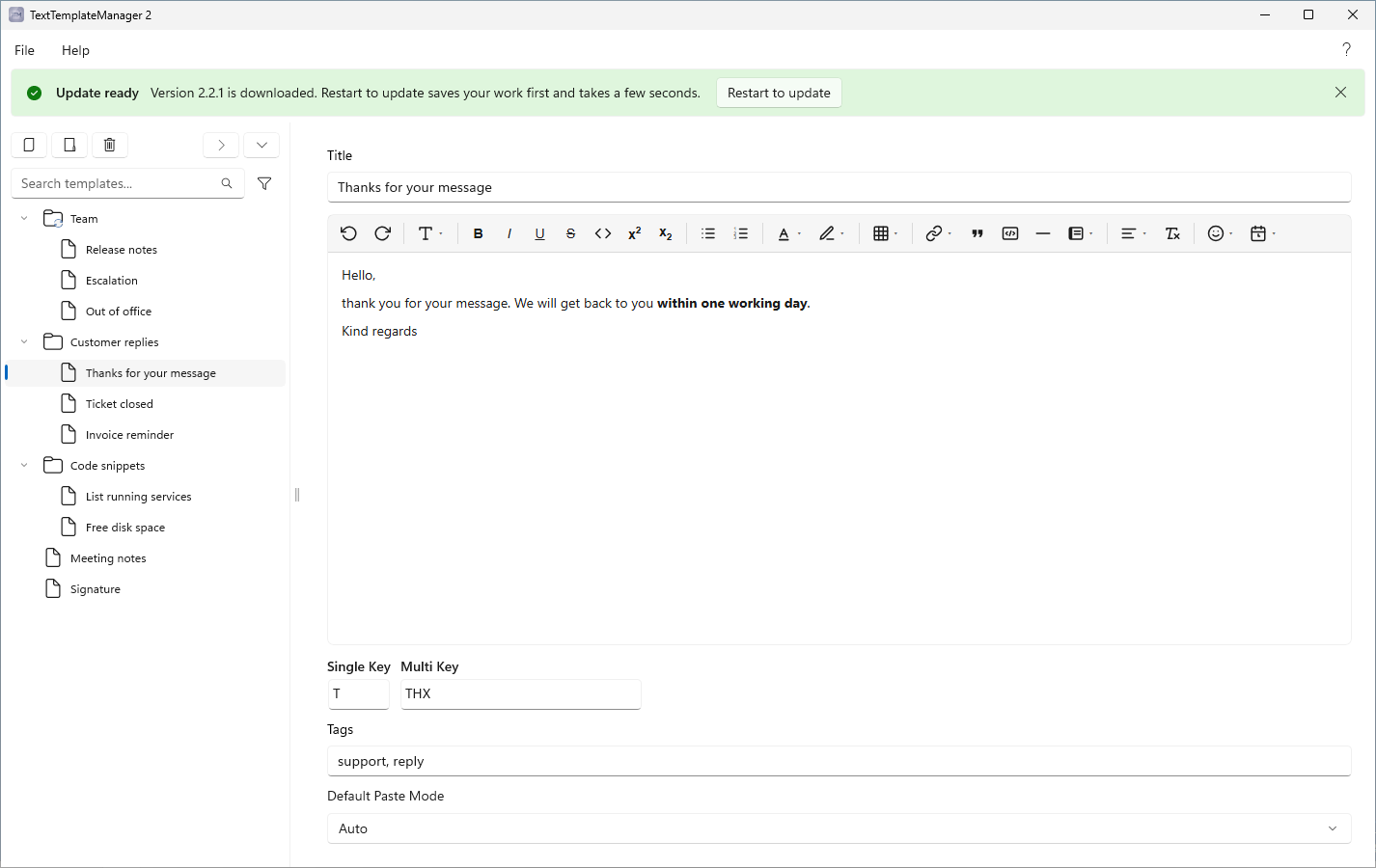
Settings ▸ General ▸ Updates shows the version and has Check for updates, which downloads a new version it finds right away; once one is ready, the button becomes Restart to update. To update only when you ask, turn off Check for and download updates automatically. With Install updates while the app isn't in use on (off by default), a downloaded update is installed when the window and Quick Paste are closed, nothing is unsaved and the PC has had no input for 10 minutes; the app then opens with what's new.
If automatic Store updates are turned off on this PC, TextTemplateManager still asks the Microsoft Store for its own updates: on its own with Check for and download updates automatically on, otherwise when you click Check for updates or Download on the notice. The Store may ask once; then the update downloads and is ready as above. If a download fails, the notice shows the error with Try again. Windows Update often brings the update on such PCs anyway; as soon as it's downloaded, TextTemplateManager offers Restart to update without asking the Store. On a company PC your IT may manage updates; the notice and the settings then say so.
If an update can't be installed (the notice says so), or to update by hand:
- Quit the app completely: tray icon ▸ Exit App, or File ▸ Exit (closing the window only hides it).
- Start TextTemplateManager again from the Start menu. If Windows has already downloaded the update, it's installed now, and the window opens with what's new.
- If Help ▸ About still shows the old version, the update hasn't been downloaded yet: quit the app again, open Library in the Store app and click Update next to TextTemplateManager (Get updates only looks for updates; the update itself starts with Update), then start the app again.
After an update, the first time the window opens it shows what's new in that version, once (see What's new).
For administrators
Installing with winget or Intune, how updates behave when the Store is restricted by company policy, start with Windows, file locations, and removing the app are covered in the Administrator & Deployment Guide (TextTemplateManager-AdminManual.pdf), attached to each release on the Releases page.
Keyboard reference
| Context | Input | Action |
|---|---|---|
| Main window | Ctrl + F | Focus the search box. |
| Main window | Ctrl + S | Save the changes to the selected template or folder (also in the editor). |
| Editor toolbar | Enter / Esc | Open / close a button's menu (Tab moves into it); in the table menu the arrow keys choose the size. |
| Main window | Tab / Shift + Tab | Go round the toolbar above the tree, the search box, the tree and the selected item's fields: title, editor toolbar, template text, shortcuts, tags, default paste mode. |
| Main window (toolbars) | ← / → | Move between the buttons of the toolbar above the tree or of the editor toolbar. |
| Editor (text) | Tab / Shift + Tab | Nest / un-nest a list item, next / previous table cell, indent / outdent a code line; elsewhere move on to the shortcuts / back to the editor toolbar. Ctrl + Tab always moves on. |
| Main window (Tree) | Delete | Delete the selected item(s) (with confirmation). |
| Main window (Tree) | Ctrl+click / Shift+click | Add or remove an item / select a range of rows. |
| Main window (Tree) | Shift + ↑ / ↓ | Extend the selection to the row above / below. |
| Main window (Tree) | Ctrl + A | Select all visible rows. |
| Main window (Tree) | Ctrl + C | Copy the selected template in its default paste mode. |
| Main window (search box) | ↑ / ↓ | Move the text cursor to the start / end; ↓ again at the end steps into the tree. |
| Main window (search box) | Esc | Clear the search text; when it is already empty, clear the tree selection. |
| Main window (Tree) | Esc | Return to the search box (the search text is kept). |
| Main window (Tree) | a letter or digit | Return to the search box and type it there. |
| Quick Paste | key | Paste by single-key shortcut (search box empty). |
| Quick Paste | Ctrl + F | Focus the search box. |
| Quick Paste (list) | ↑ / ↓ | Move the highlight through the current shortcut list (wraps at both ends). |
| Quick Paste (list) | Enter | Paste the highlighted shortcut. |
| Quick Paste (search box) | ↑ / ↓ | Move the text cursor to the start / end; ↓ again at the end steps into the tree. |
| Quick Paste (tree) | ↓ (at end of search) or Tab | Move focus into the template tree. |
| Quick Paste | Alt + keys | Paste by multi-key shortcut; release Alt to insert the highlighted match. |
| Quick Paste | Alt + keys + _ | Paste by multi-key shortcut as Plain Text; release Alt to insert. |
| Quick Paste | Alt + Backspace | Correct the current multi-key entry. |
| Quick Paste | Esc | Close the Quick Paste window. |
Additional actions are available from the right-click menu, including Duplicate, Copy and Copy As for templates, and Export… and Delete for templates and folders.
Data and file locations
Application data is stored per user in the app's own package folder:
%LocalAppData%\Packages\MarflowSoftware.TextTemplateManager_eb1r5ey0kd4ny\LocalState
This folder contains your template data, application settings, and synchronization configuration. Windows removes it when you uninstall the app or reset it in Settings ▸ Apps. Shared synchronization files are stored wherever you place them, and are not kept in this folder. The automatic backups are in Documents\TextTemplateManager\Backups, outside this folder, so they stay when the app is reset or removed.
Exiting from File ▸ Exit or the tray icon, and signing out of or shutting down Windows, first save anything still pending; if a synced file is slow to respond, a "Saving changes…" message appears until it is done. Changes to a template or folder that you haven't saved (with Autosave off) are asked about first, as when closing the window; when Windows signs out or shuts down, they are saved.
If one of these files can't be read at startup (for example after a crash during a save), the app keeps it as <file>.broken-<date-time> in this folder, tells you which file was affected, and starts without it. The original is never overwritten.
Resetting or removing the app
In Windows Settings ▸ Apps ▸ Installed apps, open the … menu next to TextTemplateManager:
- Advanced options ▸ Reset deletes the app's data (templates, settings, sync settings) and starts it as on the first day; Repair keeps the data and only fixes the app's files. After a reset, the first start offers to restore a backup.
- Uninstall removes the app together with its data folder.
Neither touches the backups in Documents\TextTemplateManager\Backups or your shared sync files; delete those by hand if you no longer need them.
Support
For questions, permission requests, or to report an issue, contact
contact@kmarflow.com, or visit the project on GitHub via Help ▸ Go to GitHub.
To report a security vulnerability, please don't open a public issue: on the project's GitHub page, open the Security tab and choose Report a vulnerability. Only the developer sees the report until a fix is out.