User manual
TTM Connect brings your Marflow Software · TextTemplateManager templates into the browser. Right-click inside any editable field — a Jira comment, an email, a web form, a support ticket — and insert a saved template at the cursor, with its formatting intact. It's a companion for the desktop app and does nothing on its own.
What you need
- The TextTemplateManager desktop application (Windows). Get it from the Microsoft Store or GitHub releases, and run it. Its documentation covers setup and the connector.
- In the app, open Settings ▸ General ▸ Browser extensions (beta) and turn the connector on.
- Note the port (default
47615) and the token shown there — you'll paste both into the extension once.
Insert and save need the template API the app exposes to the connector; Create template from selection needs TextTemplateManager with API protocol 2 or newer.
Install the extension
Install from the Chrome Web Store or Edge Add-ons, then pin it if you like — the extension has no toolbar popup, so you won't need the button for day-to-day use.
Install from Firefox Add-ons (AMO).
Prefer to load it unpacked for development? See Installing unpacked at the end.
Pair it with the app
Open the extension's options — Chrome/Edge: Details ▸ Extension options; Firefox: the add-on's Preferences — and fill in the two values from the app:
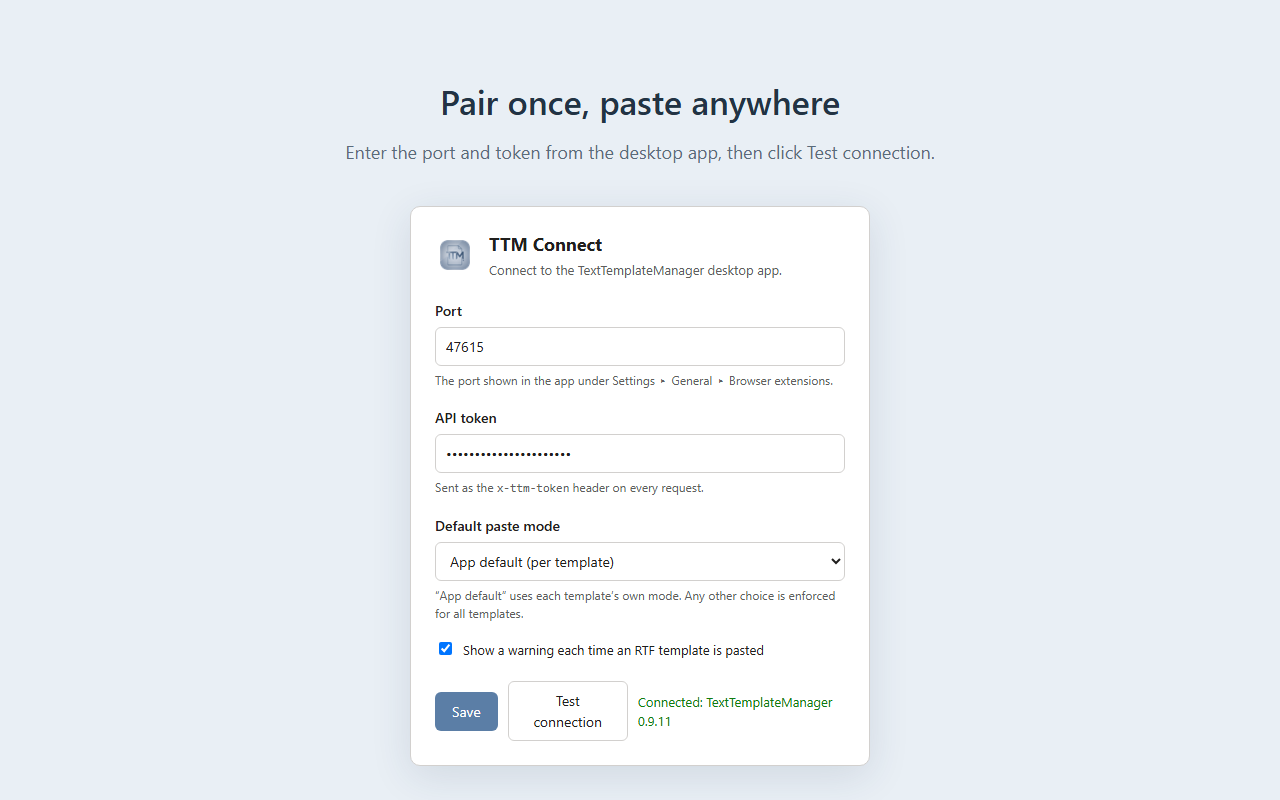
- Port — the port from Settings ▸ General ▸ Browser extensions in the app (default
47615). - API token — the token shown next to it. It's sent as the
x-ttm-tokenheader on every request. - Click Test connection. It should report Connected: TextTemplateManager, with the running app's version.
- Save.
Your settings are stored per machine in the browser's local storage and persist across browser and extension updates. If you change the token in the app, update it here too.
Insert a template
Click into any editable field, then open the context menu — by right-click or the keyboard context-menu key (Chrome, Edge and Firefox). Open TTM Connect and walk the submenu: it mirrors your folder tree in the app. Choosing a template fetches its rendered content from the app and inserts it at the cursor.
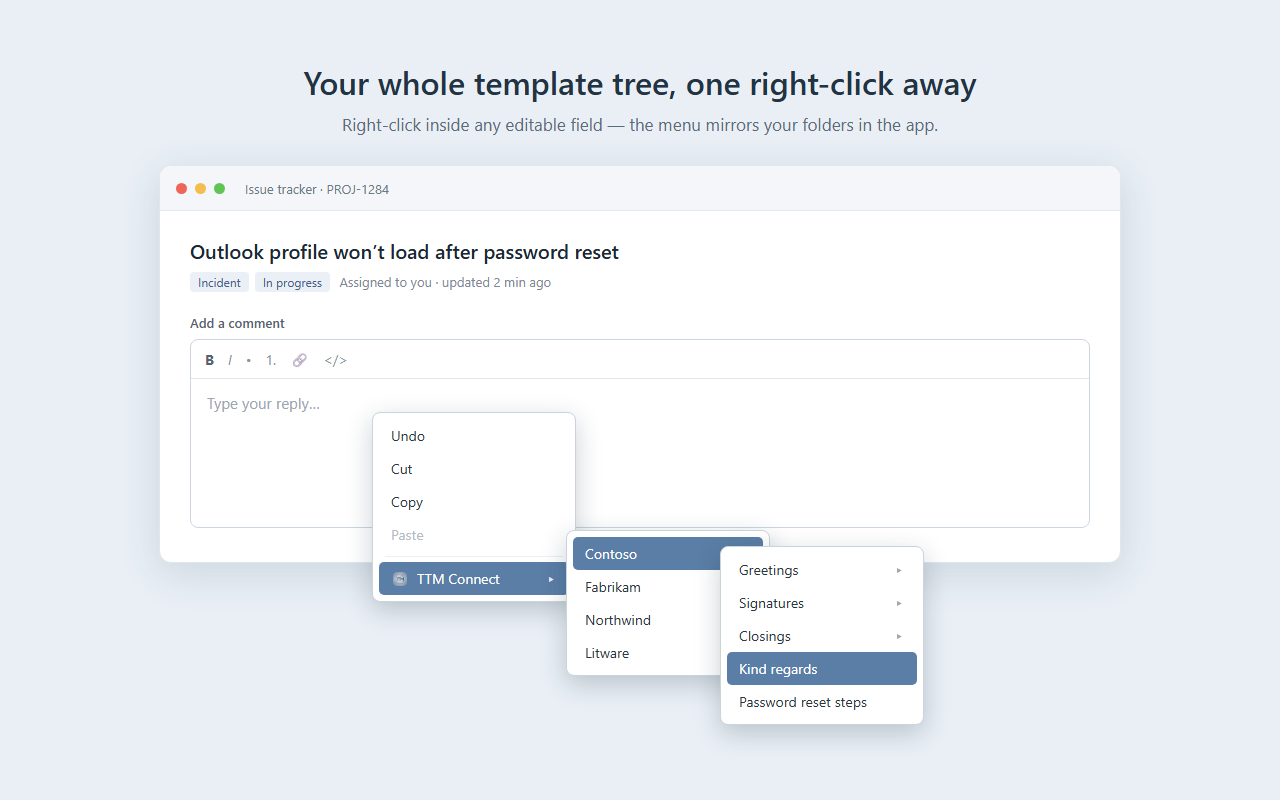
If the submenu shows Configure… instead of your templates, the extension isn't paired yet — go back to Pair it with the app.
Paste modes
Each template has its own paste mode in the app (HTML, Jira-tuned HTML, Markdown, plain text or RTF). The extension can defer to that, or enforce one mode for everything:
| Default paste mode | What happens |
|---|---|
| App default | Each template uses its own mode, set in the app. |
| Any specific mode | That mode is enforced for every template, whatever the app says. |
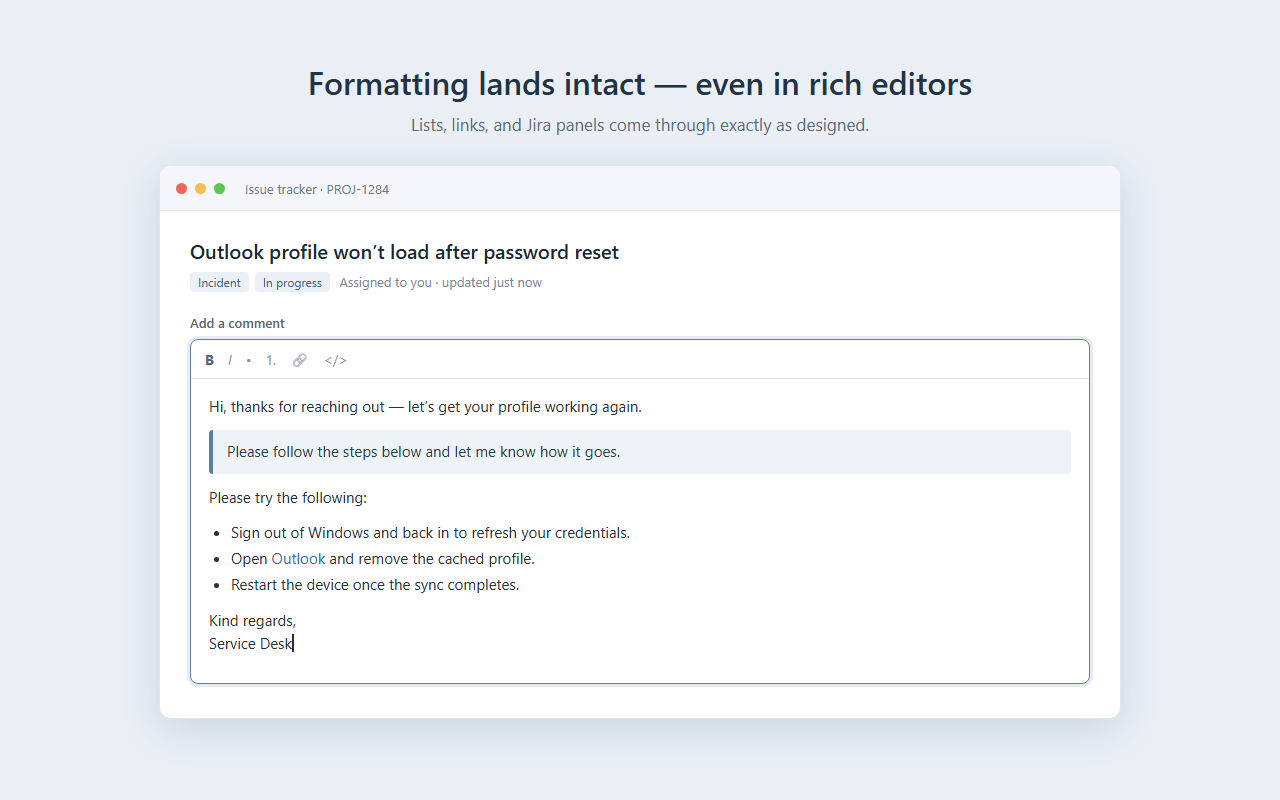
Set it on the options page. Rich web editors read HTML best — use HTML or Jira there; most of them ignore RTF.
Ctrl+click → plain text (Firefox only)
On Firefox, hold Ctrl and click a template to force a plain-text paste, whatever its mode. Chromium (Chrome/Edge) doesn't expose modifier keys to context-menu clicks, so there a click always uses the configured mode. See Notes & limitations.
Create a template from a selection
Select text on a page, then open TTM Connect ▸ Create template from selection. The selection is saved as a new template in the app, keeping its HTML formatting where possible, and appears in the menu. This needs TextTemplateManager with API protocol 2 or newer.
How the menu stays up to date
New or renamed templates appear in the menu on their own — you rarely need to do anything:
- It refreshes the moment the menu opens on Firefox, and on Chrome/Edge when you switch back to the browser or change tabs.
- It also refreshes on install, on startup and whenever you change settings.
- During active use a refresh runs every 15 seconds, with a 1-minute wake as the idle fallback (the shortest a published MV3 alarm allows).
Settings reference
| Setting | Meaning |
|---|---|
| Port | The connector port from the app. Empty by default. |
| API token | The x-ttm-token from the app. Empty by default. |
| Default paste mode | App default defers to each template's own mode; any other value is enforced for all templates. |
| Show RTF paste warnings | A toast shown whenever a template is pasted as RTF (web editors usually can't render RTF). |
Settings live in the browser's storage.local, on your device, and survive browser and extension updates.
Notes & limitations
- Ctrl+click → plain text works on Firefox only. Chromium doesn't pass modifier keys to context-menu clicks, so on Chrome/Edge a normal click always uses the configured default mode.
- Keyboard context menu works via the keyboard context-menu key (and the mouse) on Chrome, Edge and Firefox. SHIFT+F10 on Firefox is not yet supported — that path doesn't expose the target field to the extension, so nothing is inserted; use the context-menu key or the mouse there.
- RTF is kept as RTF and placed on the synthetic paste as
text/rtf, with a best-effort plain-text fallback. Most web editors ignore RTF — use HTML/Jira for rich web paste. - TTM Connect talks only to the app on your own computer over the local loopback (
127.0.0.1). If the app isn't running or the connector is off, the menu shows Configure… and nothing is fetched. See Help & troubleshooting.
Installing unpacked (for development)
- Go to
chrome://extensions(oredge://extensions). - Turn on Developer mode.
- Load unpacked → select the
ttm-connect/folder. - Open the extension's Options and enter the port and token, then Test connection.
- Go to
about:debugging#/runtime/this-firefox. - Load Temporary Add-on… → pick
manifest.jsonin the folder. - Open the add-on's Preferences and enter the port and token, then Test connection.
Temporary add-ons are removed when Firefox restarts. For a persistent install, use the signed build from AMO.